
How to Withdraw
On this page
To withdraw items as a VP code, follow these steps:
- Open the inventory from the top right (box icon).
- Select the item(s) you want to withdraw. The total price of the items you select must be at least 375 VP (see “What is the minimum I can withdraw?” below).
- Click the “Withdraw” button at the bottom.
- Select the VP codes you want to receive according to the price of the items. The excess amount is transferred to your balance automatically.
- Confirm. The confirmation message says that your items will be deleted and that in return you receive a VP code of your choice. The transaction is not refundable.
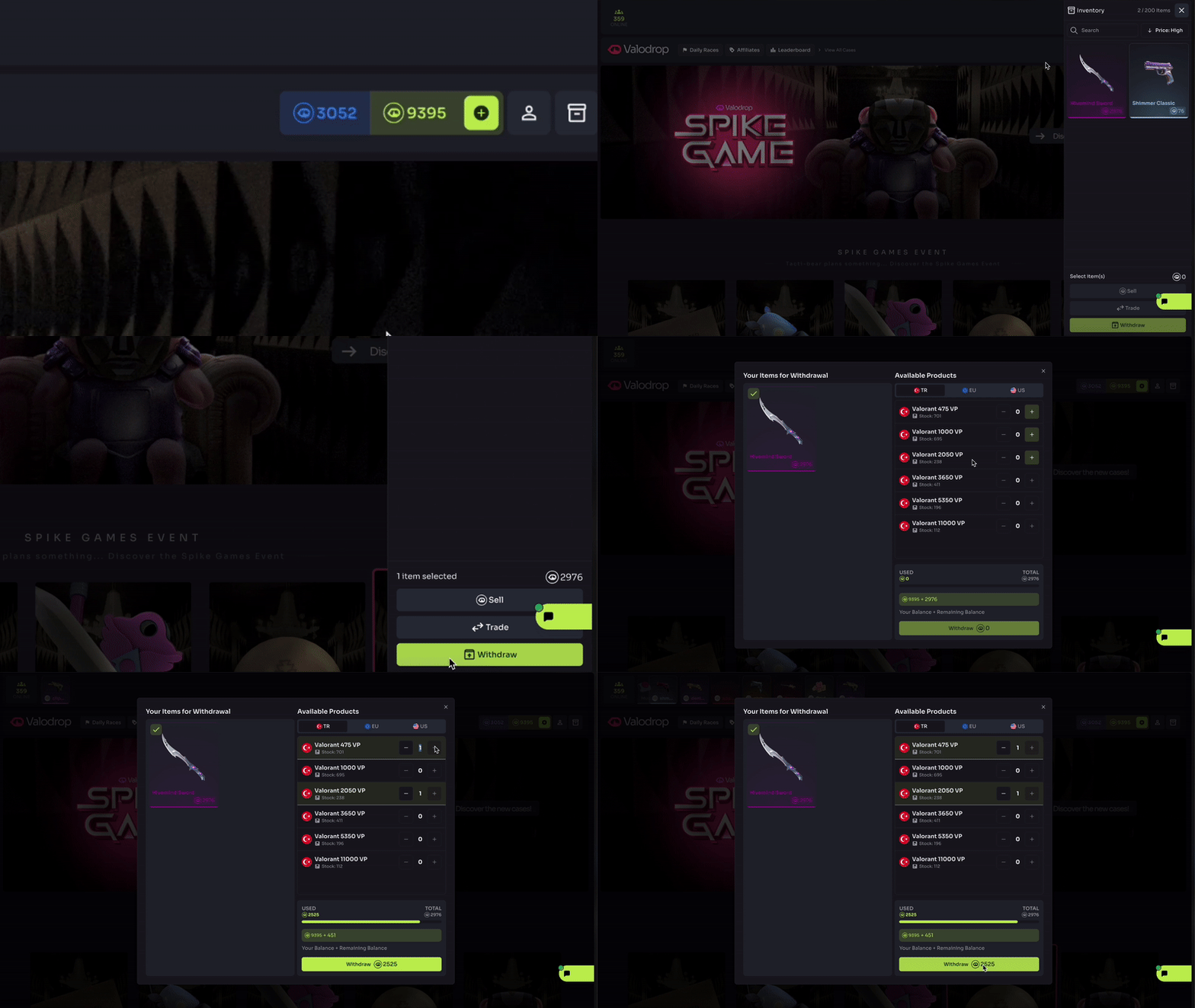
For example: after withdrawing a 400 VP item as a 375 VP code, the remaining 25 VP is transferred to your balance.
What is the minimum I can withdraw?
VP codes exist only in the fixed amounts that Valorant sets. Valodrop cannot create a custom amount for a code, so you cannot withdraw just any amount.
- The smallest VP code you can withdraw right now is 375 VP. This is also the lowest withdrawal amount.
- If the total price of the items you selected is below 375 VP, you cannot withdraw a code. You can select several items together to reach this amount.
- The full list of code amounts you can choose is shown on the “Withdraw” screen. The amounts are set on the Valorant side, so they can change over time; the current list is always on that screen.
- If the total price of your items does not match a code amount exactly, the amount left above the code you chose is transferred to your balance. Balance cannot be withdrawn as a VP code; it is used to open cases and for PVP Royale.
Where do I see my code?
Withdrawn VP codes appear in the Orders section of your Profile page. To see your code:
- Click the profile icon at the top right and choose “Profile”.
- Open the “Orders” section.
- Find the order with the VP amount you withdrew and click the “View Codes” button.
How do I use the code?
You activate the VP code in your Riot account and spend the VP in it as you wish. Because the items you withdraw are symbolic, you do not have to buy that item with your VP code. You can enter the code in two ways; the steps are based on Riot’s official support pages.
Way 1: In the Valorant client (computer)
- In “Profile > Orders”, copy the code that opens with the “View Codes” button, in full.
- Log in to the Valorant client with the Riot account you want to use the code on.
- At the top right, click the VALORANT icon next to your VP balance.
- Open “Prepaid Cards & Codes” (in a Turkish client: “Ön Ödemeli Kartlar ve Kodlar”).
- Enter the code. In some regions you must tick the consent box first. Then click “Submit” (in a Turkish client: “Gönder”).
Way 2: On Riot’s website (use this way if you play on console)
- In your browser, go to shop.riotgames.com/redeem.
- Enter the code in full and click “Redeem Code”. Log in with your Riot account if asked.
- Choose VALORANT as the game. A code is used in one game and cannot be split.
- On the summary screen, check your current balance and the VP that will be added. Click “Redeem Code” to confirm, or the cancel button to stop.
What you should know:
- A code is used on one account, once. Make sure you are in the right Riot account.
- According to Riot, codes can only be used on the server of the region where they were bought. If your account’s region does not match the code’s region, the code is not accepted.
- According to Riot, the VP usually appears right away, but it can take up to 24 hours. Riot also states that prepaid card codes do not expire over time.
The code does not work or looks invalid
The code to enter is the one that opens with the “View Codes” button of the order in the “Orders” section; the order number is not the code. Make sure you entered the code in full and without typing mistakes. If Valorant or the Riot page shows a message, here is what it means:
- “This Code Does Not Appear to Be Valid or not found” (Turkish: “Bu Kod Geçersiz Görünüyor veya Bulunmadı”): The text you entered is not in the system. Copy the code again from the “View Codes” screen.
- “This Code Appears to Not Be Properly Activated” (Turkish: “Bu Kod Doğru Şekilde Etkinleştirilmemiş”): Riot does not see the code as active. Write to the team.
- “This Code Has Already Been Redeemed” (Turkish: “Bu Kod Zaten Kullanılmış”): The code was already used on an account. Check whether you entered the same code on your own account in an earlier attempt; if the result does not change, write to the team.
- “You Have Exceeded the Maximum Number of Code Redemption Attempts” (Turkish: “Maksimum Kod Kullanma Denemesi Sayısına Ulaştın”): Too many attempts were made in a short time. Wait 24 hours and try again.
- “This Code is Not Valid in Your Region” (Turkish: “Bu Kod Senin Sunucunda Geçerli Değil”): The code belongs to the server of another region. Write to the team.
If the problem continues, write to the team using the options in Support and contact and tell them which withdrawal it belongs to: the withdrawal date and the VP amount, and write the message on the screen exactly as you see it. If you entered the code but the VP is still missing after 24 hours, you can also contact Riot Player Support (support.riotgames.com) with “Submit a ticket”; Riot asks for the code, your Riot ID and the email address of your account in the ticket.
Important notes
- Valodrop has changed: VP codes are now withdrawn only with items, not with balance. Balance can only be used to open cases.
- There is no refund of the deposited balance.
- A withdrawal cannot be refunded. Do not show your codes to others during screen sharing.